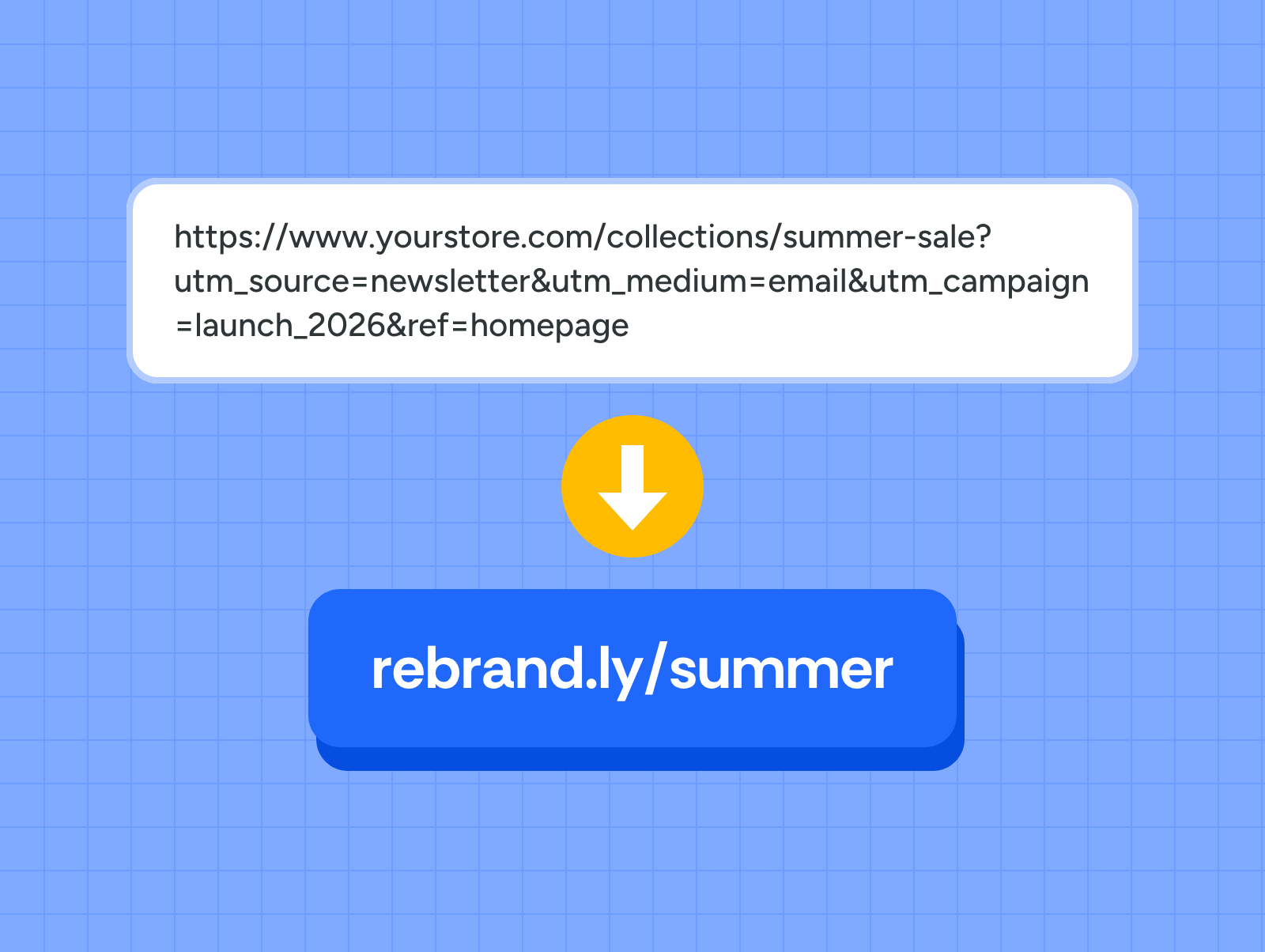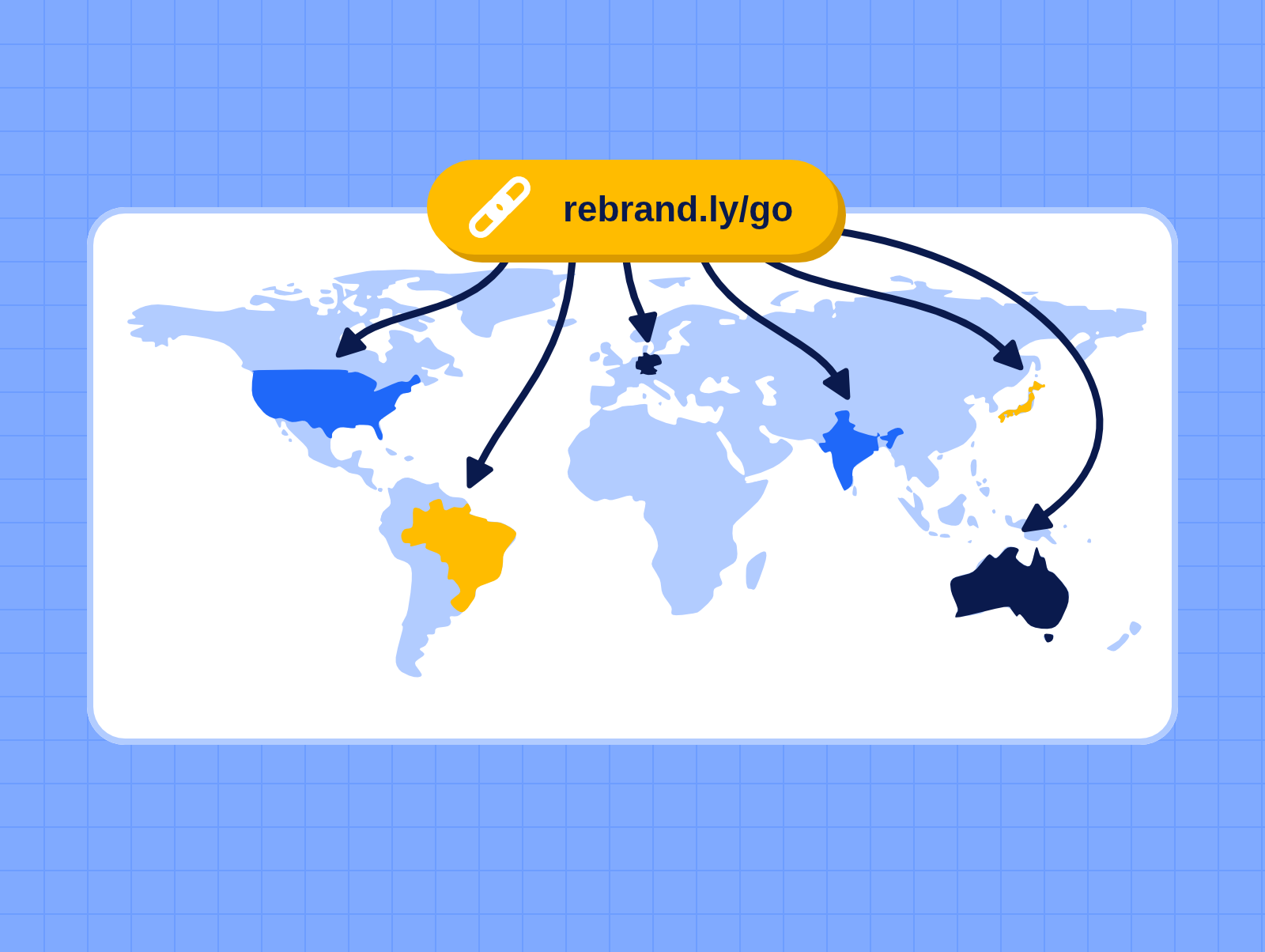

You have one branded link that needs to send visitors from 10+ countries to their own local pages. Now picture doing that for a couple dozen links, again and again as new campaigns launch.
Doing that at scale used to mean using an API, creating a script to automate the task, or having someone copy/paste from a spreadsheet. Not the most exciting way to spend your time.
Now an AI assistant can handle it. Connect Claude or another AI tool to Rebrandly, give it a spreadsheet of countries and destination URLs, and it sets up the traffic routing rules that redirect your link by country.
Here’s how I set it up.
When to let an AI assistant set up your link routing
If you only need to route links to one or two countries, that’s simple to do directly inside a URL shortener like Rebrandly, and that’s how I’d do it.
But if you’re working from a spreadsheet of a dozen countries, and you repeat it for every new campaign link, that’s when handing the job to an AI assistant makes sense.
According to Basis’s 2026 survey, 61.4% of marketers already use generative or agentic AI every day. If you’re one of them, this will probably be easier than working with an API or writing a script.
Here are some examples of when I’d use AI to setup routing rules for different countries:
- A QR code on packaging or printed materials, where one link has to work in every country you ship to.
- One product link that sends shoppers to the Amazon store (or other retailer) for their country, so each market gets the right domain and currency.
- A launch link that goes to a waitlist in markets where the product isn’t available yet and to the product page in markets where it is, then gets updated as each country goes live.
- Running a contest with official rules and eligibility pages that vary by country, so one entry link can send each market to its own terms.
- A single link in a creator’s bio or newsletter that sends a global audience to their local store.
If you’re technically savvy or work with a developer, you can also do this with the Rebrandly API. It’s just a little more technical.
How to dynamically route your links with AI
All you need to start is your destination URLs and the countries you want to route. Here’s the order I’d do it in, using Rebrandly.
One thing to know before you start: the number of routing rules you can set up on a link depends on your Rebrandly plan, so check the pricing page to see what yours includes. The prompt I share in step 3 tells your assistant to stop and let you know if it hits your limit.
1. Connect your AI assistant to Rebrandly
First, connect Rebrandly to your favorite AI assistant. For me, that’s Claude, but you can use any AI tool that allows MCP connectors.
If you’re using Claude, you can get the Rebrandly connector in their directory and set it up with a few clicks. Or you can follow these directions to connect other AI assistants with our MCP.

If you’re confused and wondering what the heck an MCP server is, start here.
2. Put your countries and URLs in one spreadsheet
With that done, I made a spreadsheet with three columns:
- One column for each country
- One column for the page that country should redirect to
- One column with each country’s two-letter ISO country code (US, DE, JP)
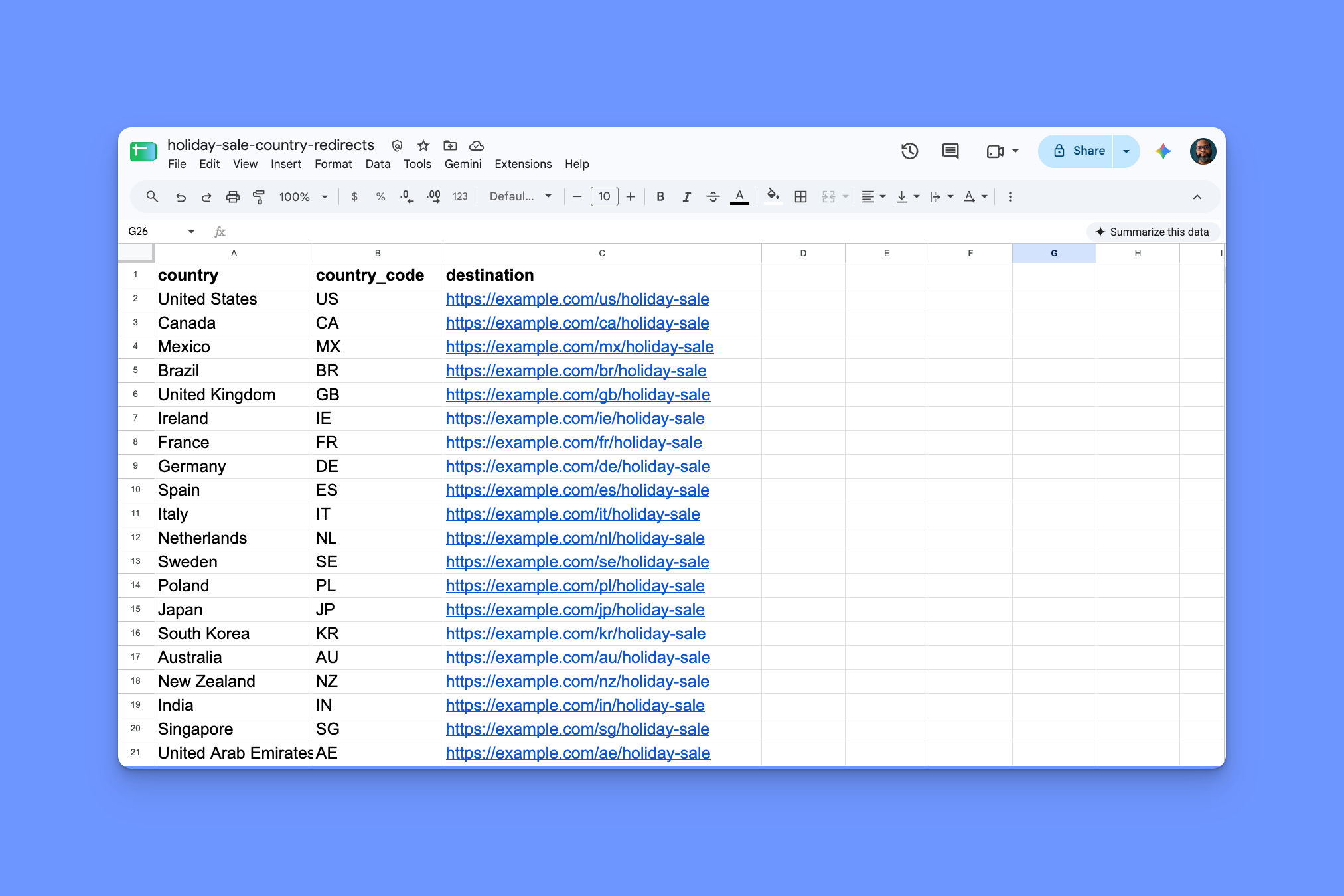
In this example, I used 20 different countries, with each one pointing to its own landing page, like example.com/de/holiday-sale for Germany.
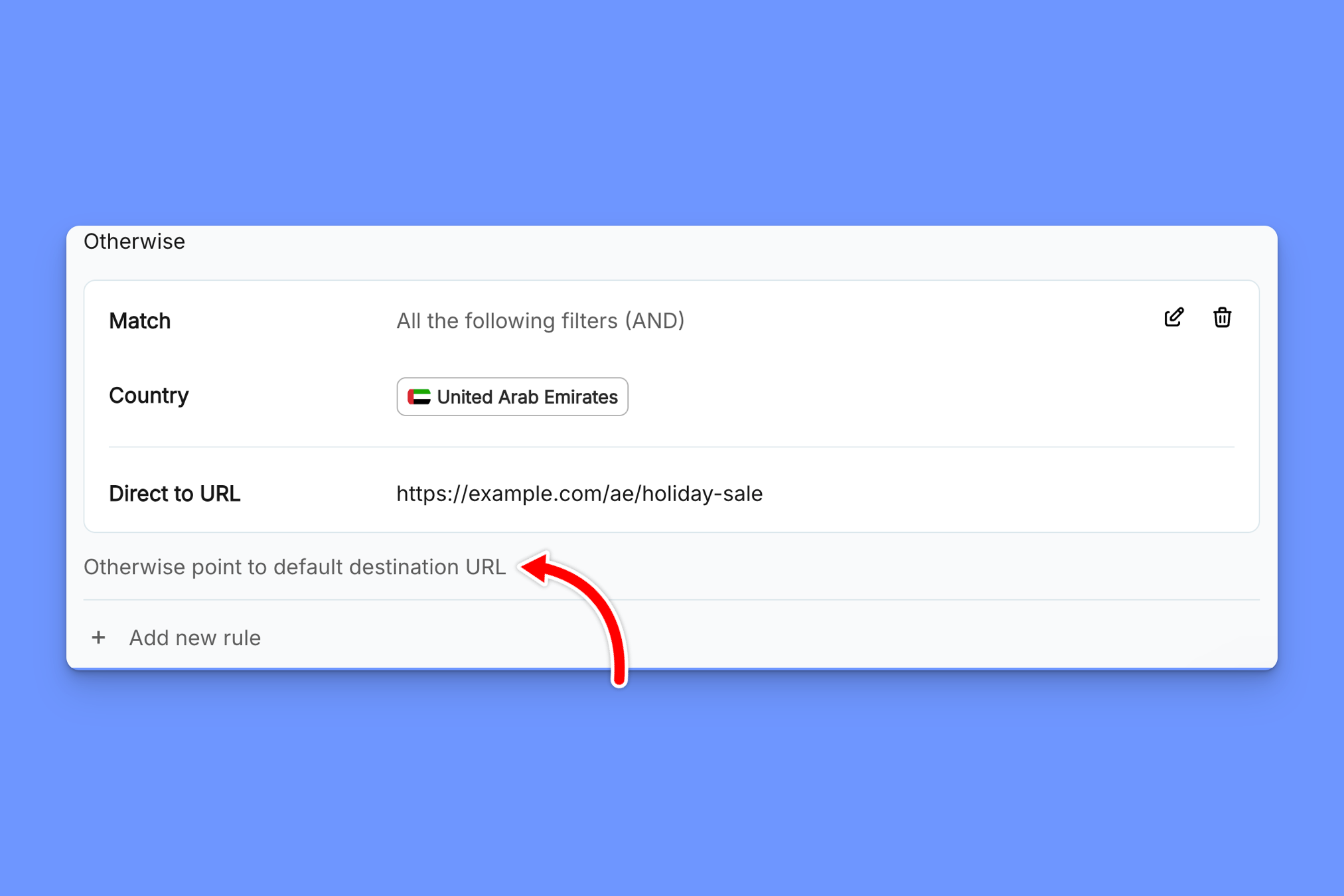
Because of how Rebrandly’s routing rules work, you don’t need to create a row for every single country in the world. If someone clicks the link from a country that’s not in the sheet, they’ll go to the link’s destination URL.
If you’d rather not start from a blank sheet, I made a starter list of 50 common countries you can copy. Just remember to delete any countries you don’t need and add any you do.
3. Tell your AI assistant what you want, in plain English
With the sheet done, I just had to explain to Claude what I wanted it to do. You can copy this exact prompt I used and attach your spreadsheet. Just swap everything in capital letters for your own details:

Of course, you can tweak it as needed. I include the check-in step so I can confirm what the AI is about to do before it starts building things, and to spot any issues with the spreadsheet. So before Claude made any changes, it checked with me first.
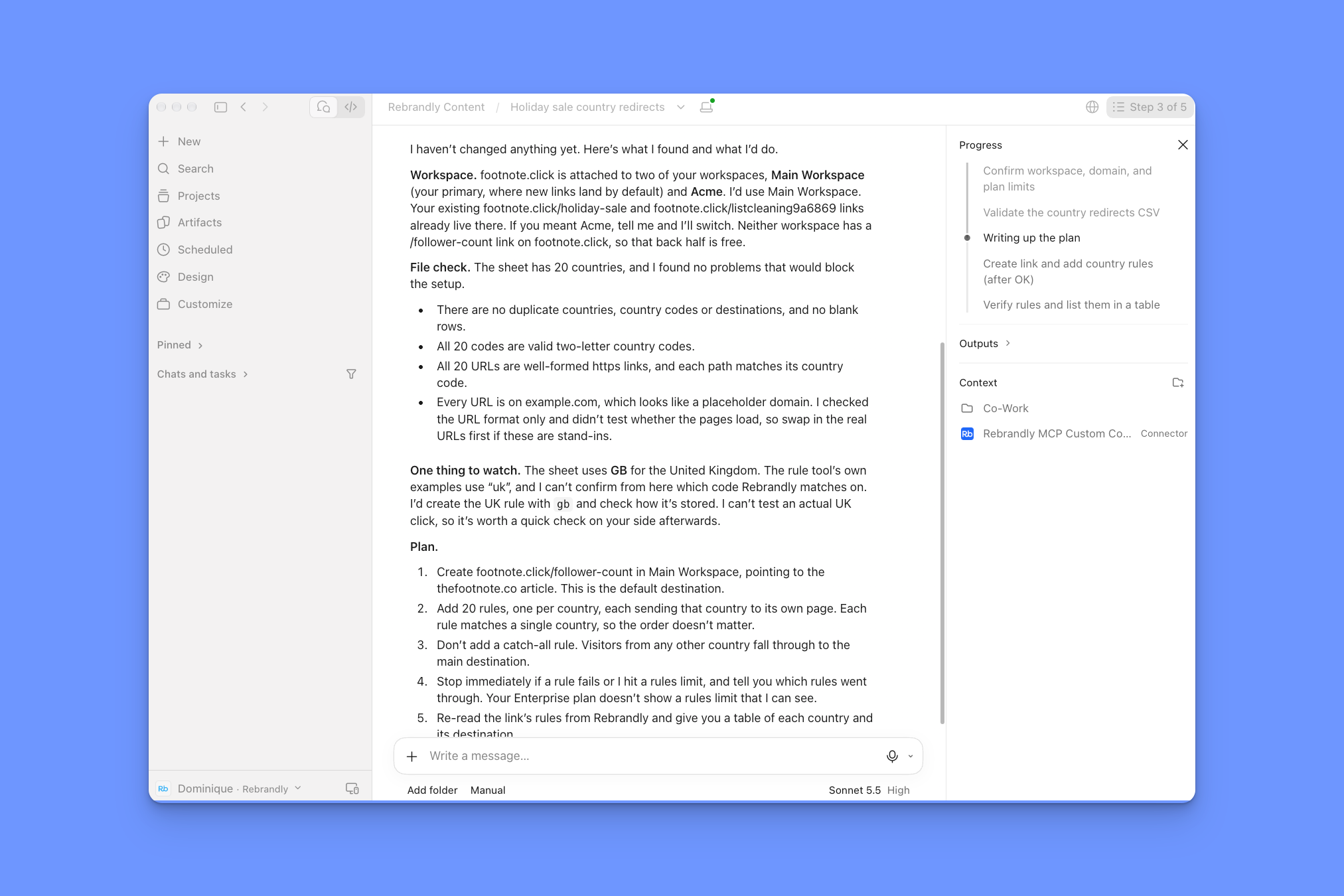
All I had to do was give Claude the “OK” and it set up all the routing rules for me. Depending on how many rules you’re implementing, it might take a minute or so to work through. After mine was done, Claude confirmed all the routing rules it set up.
4. Check the AI’s work
Your AI assistant will tell you what it built, but you should confirm it’s actually right. Go to your dashboard and compare each rule against your spreadsheet.
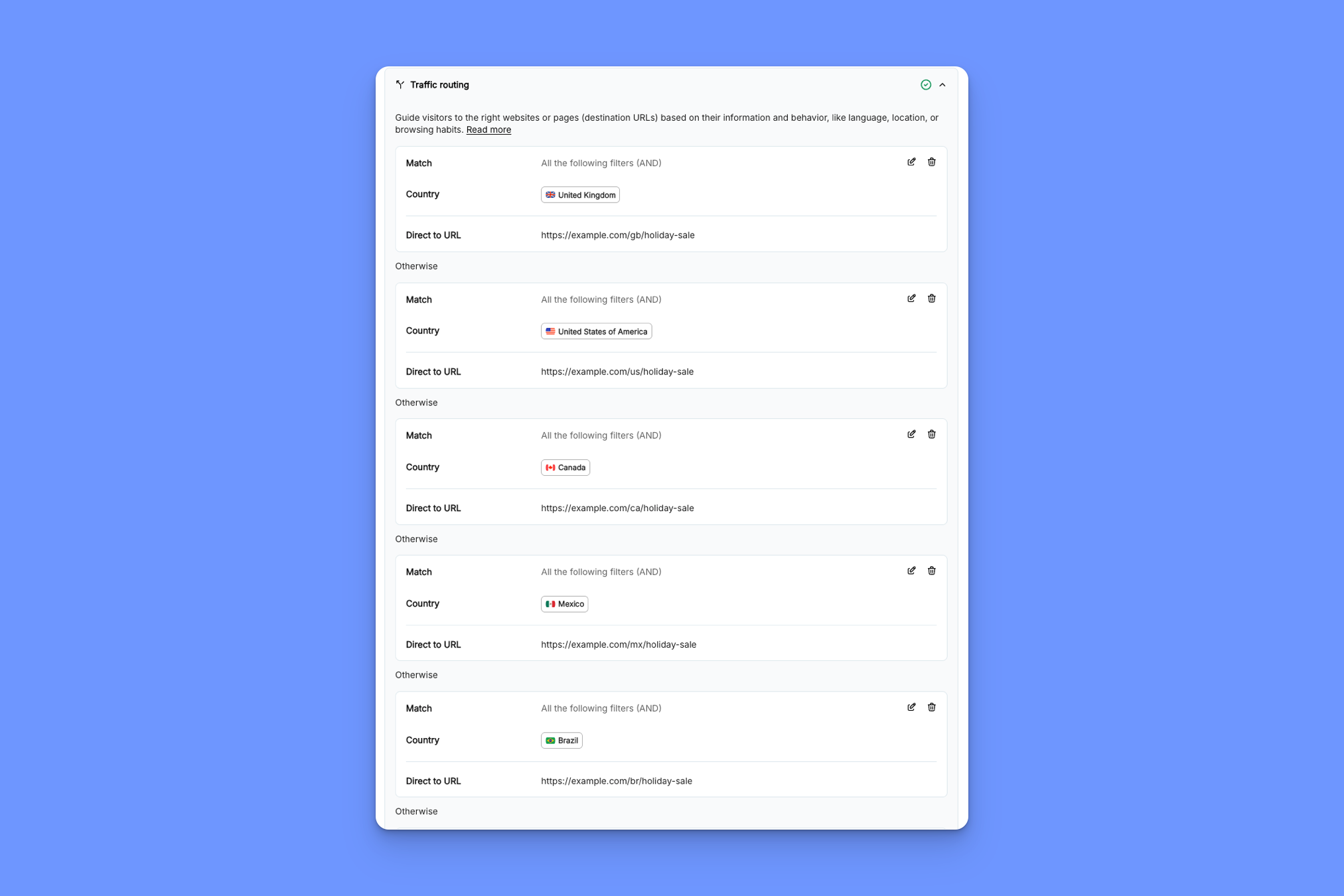
I recommend testing the link too. I used a VPN to change my location and clicked the link from different countries to make sure they went to the right page. If anything’s off, fix it before you share the link.
Link routing is just one use case
This is just one example of how you can use AI to help manage your links and take some of the monotonous work off your plate.
You can also create links in bulk, analyze your campaign performance, and a lot more when you connect Rebrandly to your AI assistant. Here are some other ideas to get you started.
I think this is where link management is headed. You spend less time tinkering with settings and act more like the conductor, deciding what should happen while your AI assistant does the tedious parts (filling out fields, creating links, etc.) Rebrandly makes it possible.
If you’re already a Rebrandly customer, you can start handing off some of your link management to an agent right now. If you haven’t used Rebrandly before, this is your sign to start. It’s free!